What should I do if my battery-powered camera can't detect the motion?
Most MERCUSYS battery-powered devices conserve energy by entering sleep mode when inactive, so they cannot continuously monitor motion like plugged-in cameras.
Detection occurs only when the device is awake, indicated by an illuminated LED. There are 2 methods to wake up the battery-powered devices:
1. PIR sensor detects motion and activates the device
2. Watching the live stream in the app
This article guides you through troubleshooting issues such as:
• Not receiving notifications or recordings despite motion occurs in front of the camera
• Only receiving notifications and clips while watching the live stream
Step 1. Confirm the detection range and adjust the installation if necessary
Due to the physical limitations of sensors, the detection range of current battery-powered camera products is limited — and MERCUSYS products are no exception.
The mounting location greatly affects the detection range. We highly recommend you install in our recommended height and angle in quick installation guide. Please check the recommended mounting height and angle in the MERCUSYS app: Device Settings > User Guide > Mounting Guide or the Quick Installation Guide.
The recommended height is 2-3 meters, tilted down at an angle of 20°. And the maximum detection distance is about 8 meters (in sensitivity 10). Therefore, if the movement is beyond this range, it can't be detected.
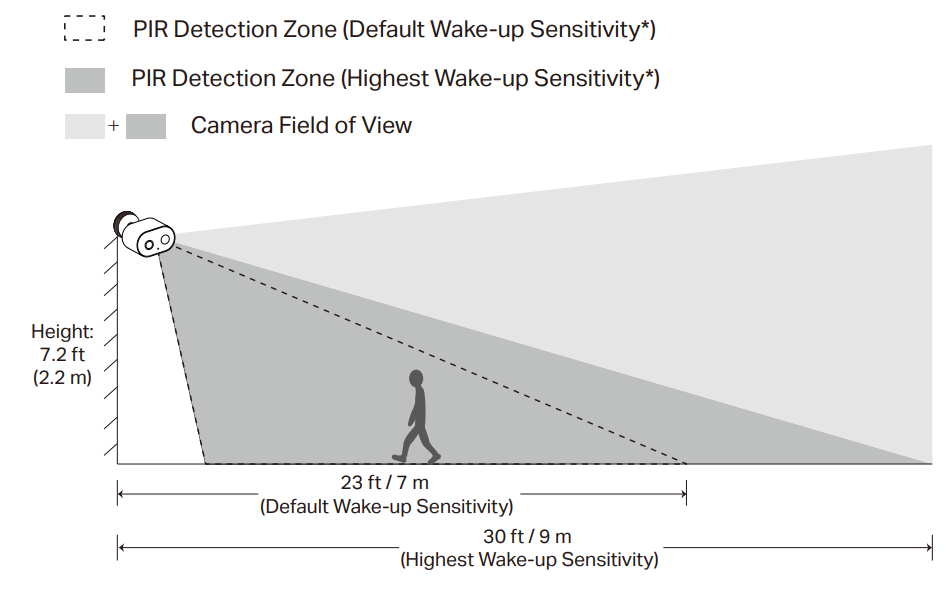
Step 2. Adjust the Wake-up sensitivity
Please adjust your Wake-up sensitivity appropriately in conjunction, you can go to the MERCUSYS app, tap Device Settings > Detection > Wake-up sensitivity, select 'Detection Range Test' to begin the test. You have the option to choose either light or sound as indicators of a successful wake-up event.
If your camera doesn’t support this feature, try the following method to see if movement can wake it up:
1. Turn on the Alarm in Device Settings > Alarm > Detection Alarm. Choose Alarm Type as sound.
2. Leave the live view and wait for the camera to power off.
3. Slowly approach the camera from a distance, when the Alarm sound turns on, it indicates that here's the maximum wake-up distance. Movement further away cannot trigger detection.
Step 3. If the detection range is still not ideal
• Avoid placing the camera behind glass
Situating the camera behind glass can prevent it from detecting movement outside, resulting in missed alerts.
• Keep the motion sensor lens level
Ensure the camera lens is horizontal. If tilted or inverted, the PIR sensor's detection range may be limited, leading to missed motion events.
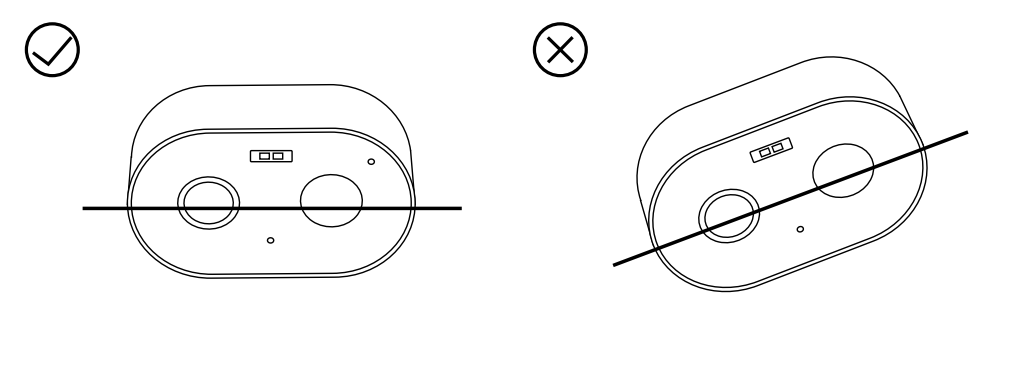
• Don’t mount upside down
Ensure the camera is oriented correctly to maintain proper functionality.
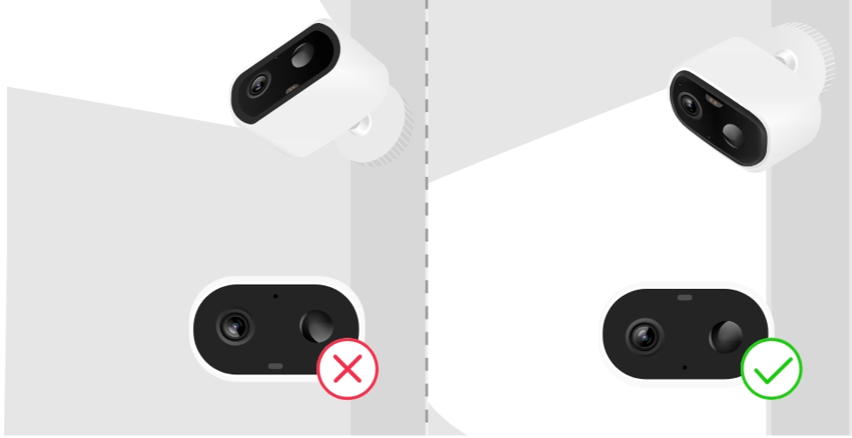
• Mount the camera to the side
Avoid pointing the camera directly at the monitoring area. When someone approaches directly, the PIR sensor may not activate effectively. Position the camera to the side for better sensitivity.
Note: PIR sensors operate by detecting changes in thermal radiation in the environment. When an object or a person moves within the sensor's detection range, it causes a temperature change. The sensor primarily relies on a pyroelectric element to sense these changes, which typically occur through the relative motion between the object and the sensor.
The design of PIR sensors makes them more sensitive to lateral motion (i.e., motion parallel to the sensor) and less sensitive to radial motion (i.e., movement toward or away from the sensor). This is because the sensor's pyroelectric element primarily detects the temperature difference between two heat sources, and radial motion may not produce sufficient temperature changes in the sensor’s detection area to trigger an alarm.

Additionally, some animals may be difficult to detect because their heat signatures are smaller and less likely to trigger the sensor compared to humans.
Step 4. Adjust the Clip Settings
1. Navigate to Camera Settings > Storage & Recording > Clip Settings.
2. Reduce the Retrigger Time, increase the Record Buffer, and extend the Maximum Clip Length.
Step 5. Check firmware
Ensure that the camera's firmware is up to date.
Step 6: Modify detection settings
Adjust the detection types, active zone, and detection sensitivity. Take motion detection for example, go to Camera Settings > Detection > Motion Detection, and modify motion detection sensitivity.