What can I do if my deivce cannot find my wireless networks?
Introduction
If your device cannot find wireless networks or fails to detect your Wi-Fi, the problem may be related to device settings, wireless adapters, router configuration and so on. This article provides step-by-step troubleshooting guidance for different scenarios, and help you quickly identify and resolve the problem.
Troubleshooting
Case1. Can NOT find ANY available wireless networks
1. Ensure your devices(computer/phone or other devices) support wireless function.
2. Check whether your wireless adapter is installed or working normally.
If the wireless adapter on your computer cannot detect any wireless networks. Check the settings on your computer/device to make sure the wireless adapter is installed properly and enabled successfully. You can refer to How to check whether I have installed the driver for my adapter successfully or not for details.
3. Check whether the Wi-Fi function on your client devices(computer/phone) is enabled.
4. Try to enable the hotspot of your smartphone and check whether your client devices can detect the wireless of the hotspot. If not, please contact the computer/wireless adapter/device’s support for help if necessary.
Case2. Can find other networks but cannot find my wireless network
1. Check the system LED indicator on the front panel of your wireless router, and ensure it is solid green.

2. Ensure you have enabled wireless function on your router.

3. Ensure you don’t enable Hide SSID option on the router.
Note: If you have enabled it, the wireless name is not invisible in the Wi-Fi list on your client device. You need to add the profile manually.

4. Ensure your computer/device is still within the range of your router/modem. Try to move closer if you are currently too far away.
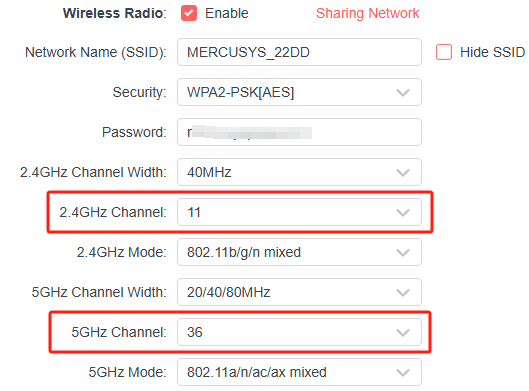
5. Check the channel of the router is supported by your wireless clients. Some clients don’t support some wireless channels due to the Region/Country limits.
6. Try to reset the router. If you still can’t see the Wi-Fi, it may be the hardware problem.
Case3. Cannot detect or find the wireless signal of Wi-Fi 6 products(802.11ax router/RE/Halo)
Please refer to Cannot detect the wireless signal of Wi-Fi6/Wi-Fi6E/Wi-Fi7 Mercusys products(Router/Range Extender/Halo Mesh WiFi).
If you still have problem, please contact the MERCUSYS support with the above results.